![leaddesk_logo_black.png]](https://onboard.leaddesk.com/hs-fs/hubfs/LeadDesk%20Logo%20and%20Symbol/leaddesk_logo_black.png?height=31&name=leaddesk_logo_black.png)
Sometimes it can be hard to keep track of which settings are where in LeadDesk, with some things controlled in queues, some in projects, and some things are set more globally. This article tries to group settings by subject and lets you know where to find them.
The list is by no means exhaustive, but will help you find some of the more common things people search for.
Not all settings are available for all clients, depending on the features you have enabled on your environment.
Default date and time, language and currency formats
These settings are set globally, and as such can be found on the Settings page, in the Global settings subpage.
- The language setting here is the default language for call transcripts. This can also be set on a per project basis. In the Project list page, open the project and go to the AI Transcriber settings.
- The language that a user sees in their LeadDesk interface is set in their user account on the Users page.
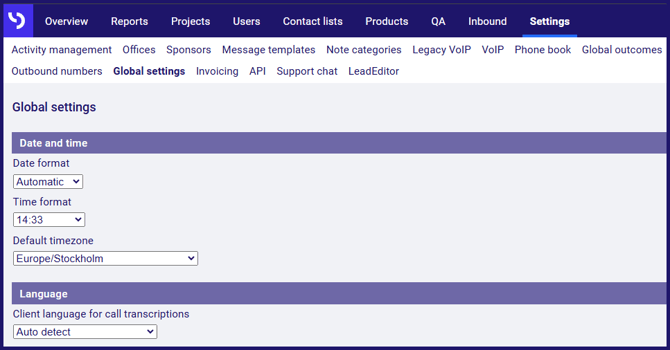
Admin Settings
Office filter settings
In the Overview pages, when sorting tables by Office, do you want it consider the office of the agent, or the project? Set this in the Settings page, in the Global settings subpage.
Outbound settings
Order settings
- Click to tick Finalize a contact when order is created if you want all orders to finalise contacts, regardless of the outcome selected. Finalised contacts remain in the contact list, but will not be called by any of the automatic calling methods.
Omni settings
Omni contact's history settings
- Should the history of a contact in the Omni agent interface show a table of Conversations or a straight Linear view.
- If you select Linear view, agents will not be able to apply categories to calls and messages.
Message channel settings
Several settings that manage the way messages behave in Omni.
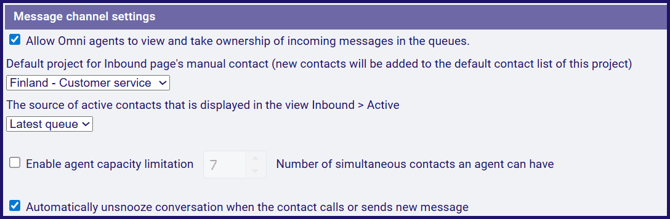
- Click to tick Allow Omni agents to view and take ownership of incoming messages in the queues if you want agents to be able to pick messages from their queues.
- Click the Default project for Inbound page's manual contact drop-down list to choose the project which will be used for manual contacts. This determines the default sender email address and which contact list a new contact will be added to.
- Click The source of active contacts... drop-down list to choose what will be shown for messages in the Active list, the queue or the project for the message.
- Click to tick Enable agent capacity limitation to set a maximum number of contacts an agent can have active simultaneously.
- Click to tick Automatically unsnooze... if you want snoozed conversations to wake up when the contact calls or sends a new message.
Transfer settings
- Click to tick Allow Omni agents to transfer conversation to queues they don't have access to, if you want agents to be able to transfer to queues they cannot serve. This might be useful, for example, to let agents escalate conversations to a second line support queue.
Notes
- Clicking to tick the option Allow agents to edit and delete notes will let the agent who created a note to edit or delete it.
Categories
- Enable categories for calls and messages. If you want agents to be able to apply categories to calls and messages in Omni, this setting can be found in Settings > Global Settings.
- Omni contact's history settings found in Settings > Global Settings. If you set the history to use Linear view, this also switches off categories.
- Defining categories, if you use them, is done in Settings > Categories.
- Choosing the categories to be used for calls or messages is done per queue in Inbound > Queues.
- Making categorisation mandatory is also a setting in Inbound > Queues.
Technical settings
These settings are ones which you might never change, but may need to refer to from time to time.
-
Audio codecs can be found in Settings > Global Settings, but should not be changed unless you definitely know what you are doing.
- Data retention can be found in Settings > Global Settings and determines how long data is stored (not including call recordings).
- Facebook app management, also in Settings > Global Settings. These settings are used when setting up Facebook Messenger as a channel for Omni, and should not otherwise be touched.